-

Blueberries -

Strawberries -

Green grapes
The CAES Slideshow block shows a row of photos that visitors can scroll through, with optional captions. It is built for photo slideshows, like a set of images from an event, a facility, a field day, etc, where the pictures are the point.
If each slide needs a call to action with a link, use the CAES Hero block instead. If you want cards you can build freely with headings, text, buttons, and just about any other block, use CAES Card Carousel instead.
How to add a slideshow
- Edit the page and click the Block Inserter (+) button to add a block.
- Search for CAES Slideshow and select it. (If you don’t see it, it is probably disabled. Contact caesweb@uga.edu or submit a work request for assistance.)
- Click Choose images and pick your photographs from the media library. You can select several at once.
- The Manage images panel lists every image in the slideshow. For each one you can set:
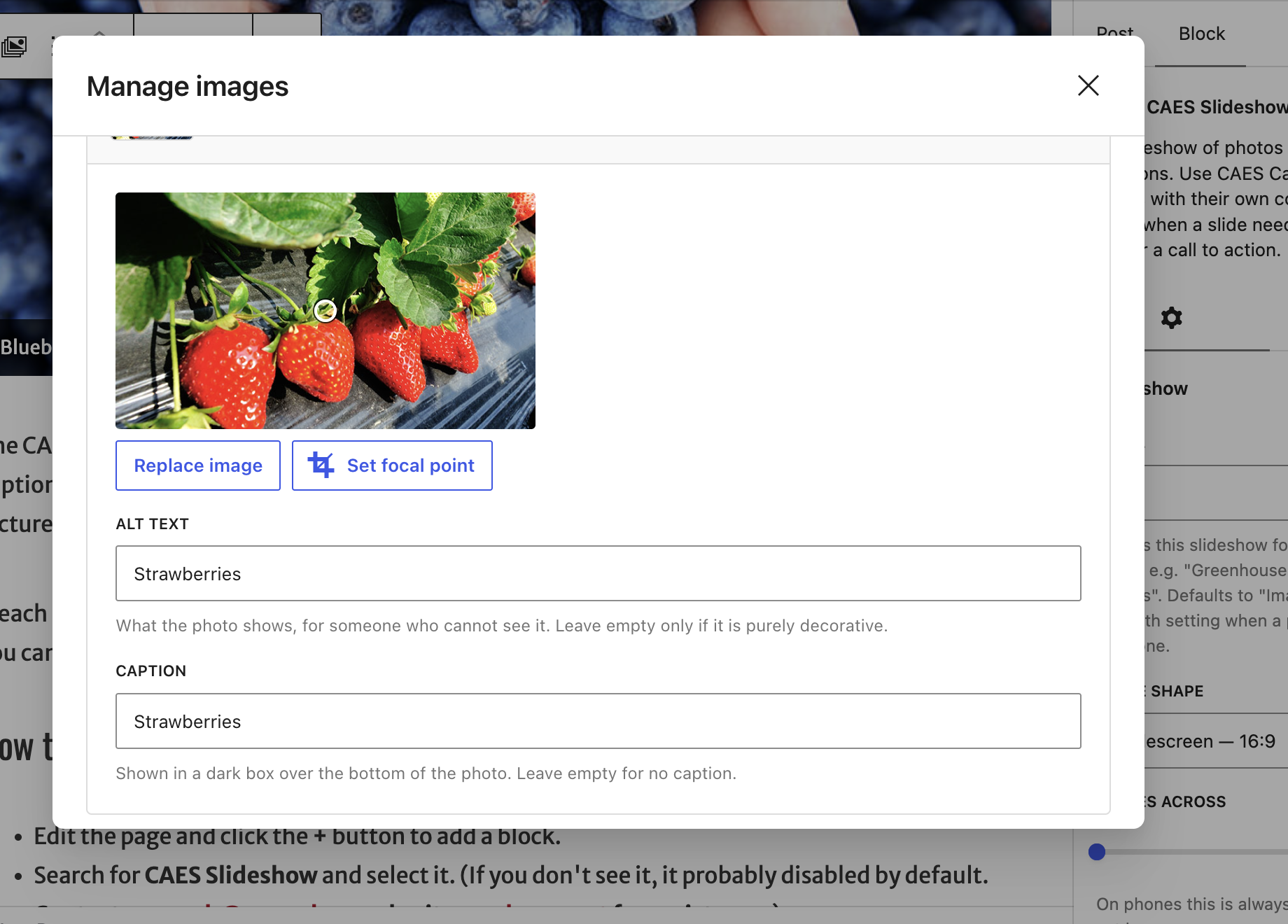
- Alt text: a short description of the photo for anyone who cannot see it. See the note below.
- Caption: optional. Captions appear in a dark box across the bottom of the photo.
- Set focal point: pick the part of the photo that must stay visible when it is cropped to the chosen shape.
- Reorder images with the arrows, remove any you do not want, and click Add images to add more.
- Click Done when you are finished.
Settings
In the sidebar under Slideshow:
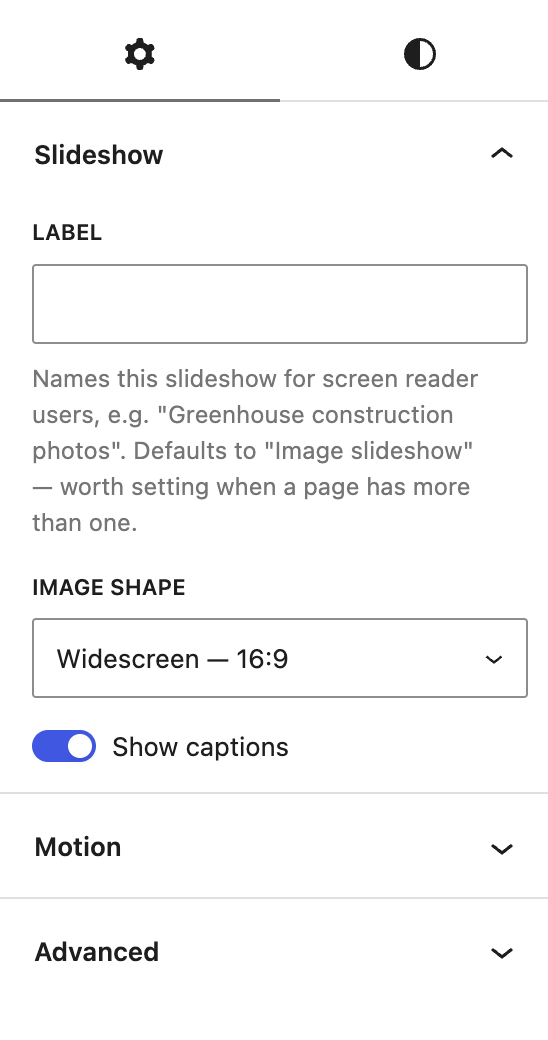
- Label: names the slideshow for screen reader users, for example “Greenhouse construction photos”. It defaults to “Image slideshow”, so it is worth setting when a page has more than one slideshow on it.
- Image shape: Landscape (3:2), Widescreen (16:9), Square (1:1) or Portrait (3:4). All the photos are cropped to the shape you choose, which is what keeps the row tidy.
- Show captions: turn captions on or off for the whole slideshow.
Under Motion:
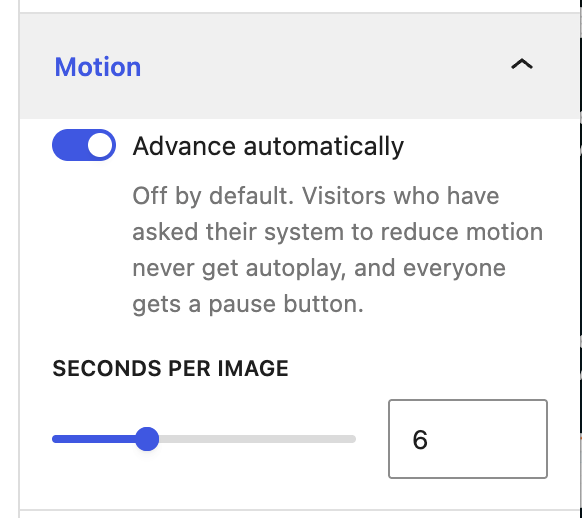
- Advance automatically: off by default. Visitors who have asked their system to reduce motion never get autoplay, and everyone gets a pause button.
- Seconds per image: how long each photo stays on screen.
Accessibility: alt text
The block will warn you when an image has no alt text. If the images don’t have alt text, a screen reader user will not know the images are there.
For alt text on a slideshow image, write what the photo shows: “Students harvesting peppers in a greenhouse”, not “slideshow image 3”.
Captions are not a substitute for alt text. They do two different jobs:
- Alt text replaces the picture for people who cannot see it. It describes what is in the photo. Screen readers announce it, but sighted visitors never see it.
- A caption is visible to everyone. It adds context the photo cannot show on its own, such as who the people are, where it was taken, when, or why it matters.
Slides can not be linked
With the CAES Slideshow block, we have made the deliberate choice to not allow links from the slides.
This is because a linked photograph has no good descriptive link text to meet accessibility standards. The alt text and caption describe the picture, but they don’t let the user know where they are going next.
If you need to add a section that uses a photo with a call to action link, use the CAES Hero block instead.
