UGA Extension publications are updated when research, recommendations, or regulations change. If you download a copy of a publication’s PDF and upload it to your county site, your copy won’t update with it. Visitors may end up reading outdated information that no longer applies.
So how can you promote a UGA Extension publication? Link to the publication on Field Report, where publications are now called Expert Resources, instead of uploading a copy. This article shows you how.
Out-of-date copies affect AI search too
More people now get answers from AI search tools and summaries. These tools pull from whatever is on the web, including old PDFs on county sites. When only one authoritative and current version of a publication is online, AI answers about Extension topics are more likely to be accurate.
Table of Contents
Why you shouldn’t re-upload publication PDFs
- It goes out of date. When a publication is revised, your uploaded copy still shows the old information.
- It competes in search. Out of date duplicate copies can outrank the current version on Google, Bing, and other search engines.
- It can make AI search results inaccurate. AI search tools can also pull from those outdated copies, which makes their answers inaccurate.
- It may not be accessible. The web version on Field Report works with screen readers and resizes for phones. Older standalone PDFs for publications often do not.
- It hides how much the publication is used. For reporting purposes, views and downloads are only easily counted when people reach the Expert Resource on Field Report.
Link to the Expert Resource on Field Report instead
On Field Report, Extension publications are now called Expert Resources. It’s the same content under a new name. When you link to one, visitors get the current version as an accessible web page. Expert Resources also include a PDF download on the same page, so visitors who want a printable copy can still get one.
For example, here is the Expert Resource for publication C932: Facts for County Planners: Zoning Issues and Poultry Production.
How to find an Expert Resource’s web address on Field Report
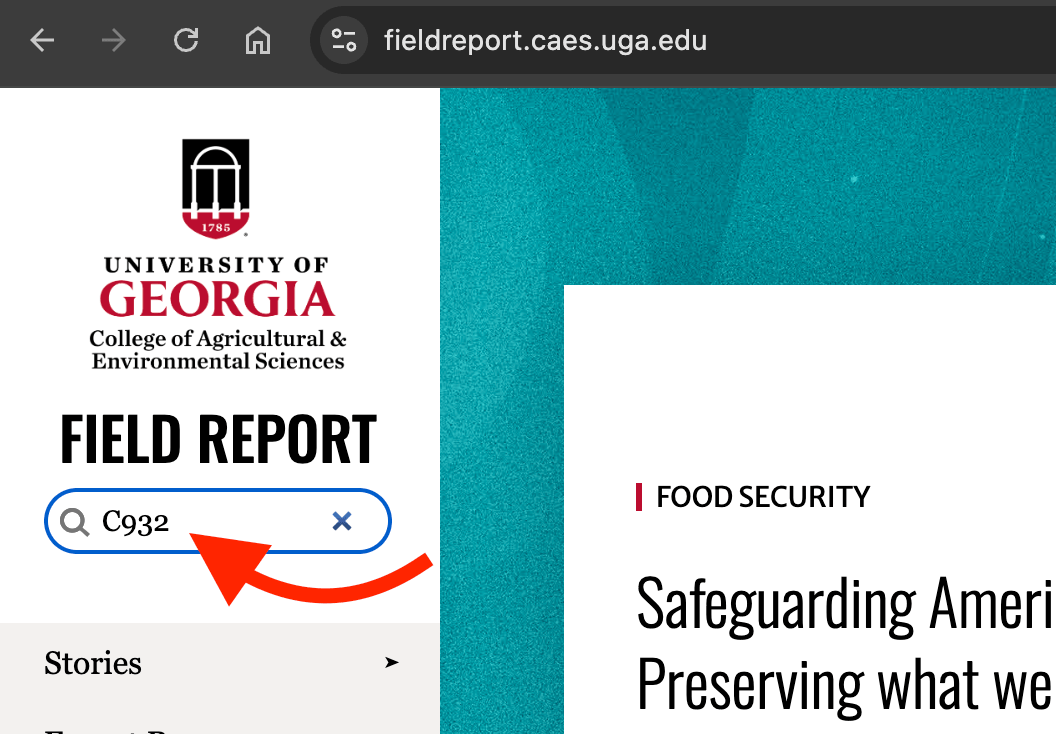
- Go to Field Report.
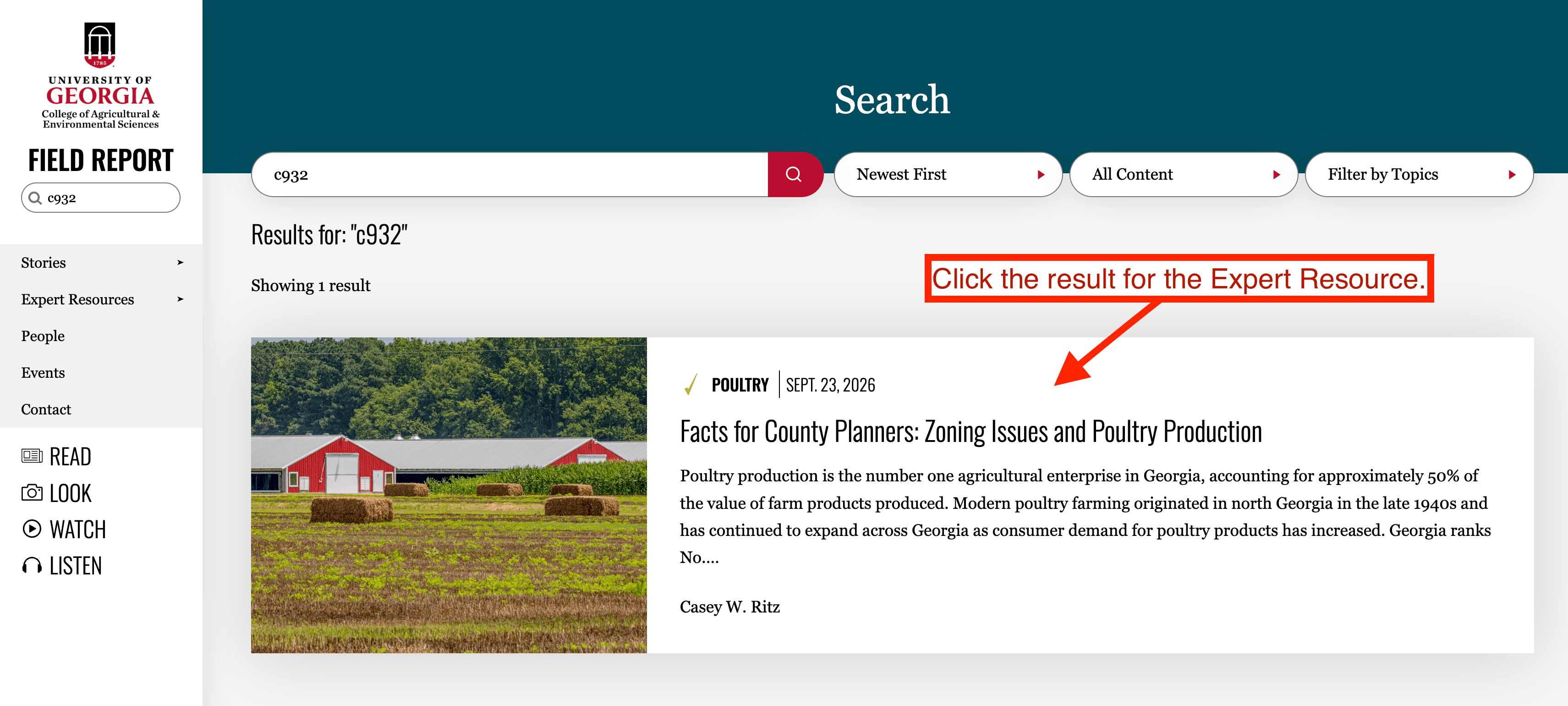
- Search for the publication’s number, such as C932. You can also search by the publication’s name.
- Open the Expert Resource from the search results.
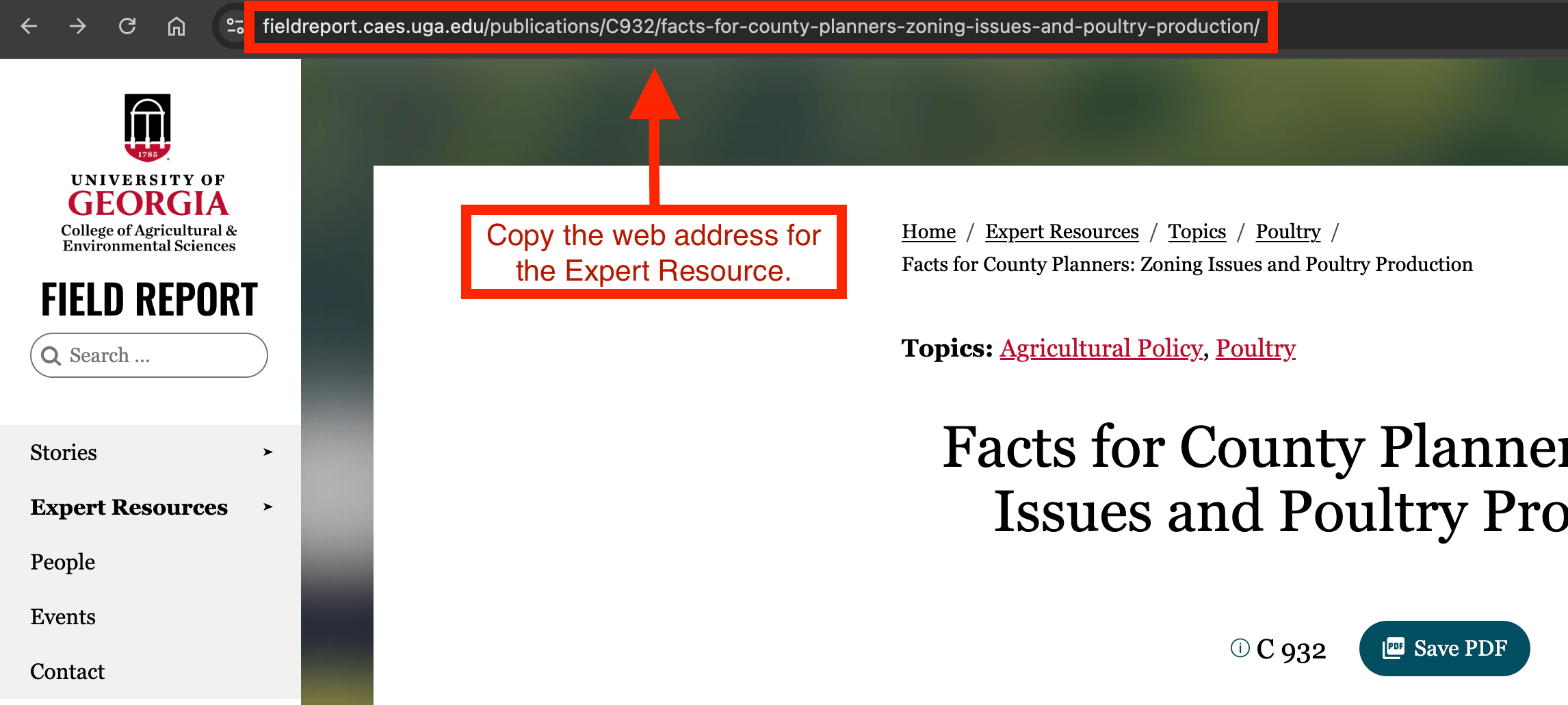
- Copy the address from your browser’s address bar.
Ways to link to an Expert Resource
How you add the link depends on where you’re adding it.
Text link (WordPress or AEM)
Add the Expert Resource’s address as a link on the publication’s title.
- Use the title as the link text. Avoid “click here” or pasting the address as the link. See Use Descriptive Links for more on why.
- Link to the Expert Resource page, not the PDF file. The page always shows the current version and includes the PDF download.
Email, newsletters, and social media
Share the Expert Resource link instead of attaching the PDF. In emails and newsletters, avoid link text like “click here” or pasting the address as the link. See Use Descriptive Links for more on why.
Clean up PDFs already on your site
If you’ve uploaded publication PDFs in the past, replace them with links.
- In DubBot, open your site’s dashboard and select the PDFs link. This lists every PDF on your site. The Link Sources column shows how many pages link to each one.
- Select a publication PDF, then open its References tab. This lists every page that links to the PDF.
- On each page listed, replace the link to the PDF with a link to its Expert Resource on Field Report in AEM or WordPress. Re-publish the page.
- Delete the uploaded PDF from your site’s files. To find the PDF:
- WordPress: go to Media > Library, then change the All media items dropdown to Documents and select Filter.
- AEM: look in your site’s folder in Assets.
Quick checklist
- No Extension publication PDFs are uploaded to your site
- Every publication link points to its Expert Resource on Field Report
- Link text uses the publication title
- Old uploaded PDFs are deleted from the WordPress Media Library or your county’s AEM Assets folder
Need help?
If you have any questions about your CAES or Extension website, contact the CAES Web Team at caesweb@uga.edu.
