This document is intended for locations supported by CAES OIT staff. Locations that are supported by county IT may have to gain approval for the installation of this software from their own IT group.
Please review the Remote Access VPN information provided by EITS for download and installation information. If you encounter difficulties installing the VPN, please contact the EITS Service Desk.
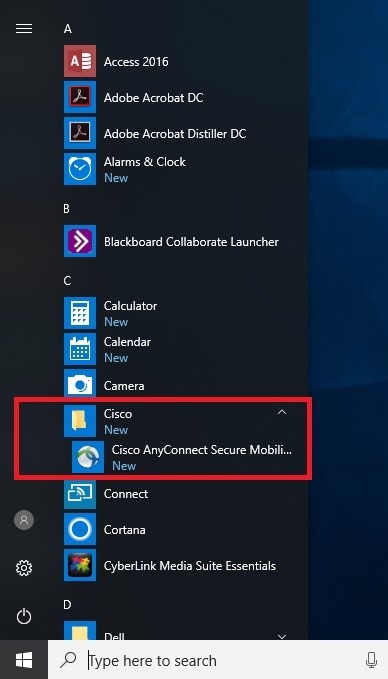
When install is complete, locate the Cisco folder in your Start menu to launch the program.
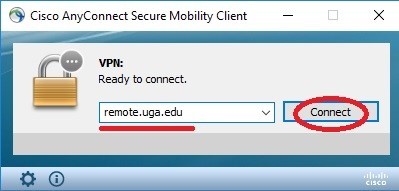
When the program opens, fill in the host field with “remote.uga.edu” and click Connect. (NOTE: Remote2.uga.edu can also be used as an option if remote.uga.edu does not work.)
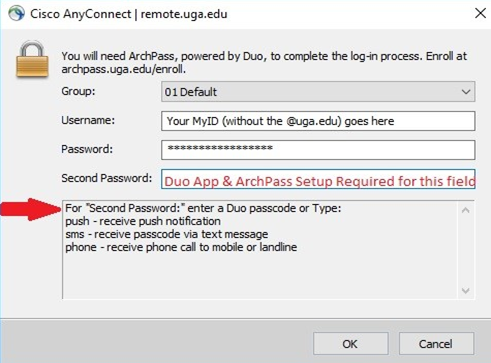
You will be prompted to enter your MyID username (leave off the @uga.edu) and password. Fill out the “Second Password” field with one of three options indicated below -“push”, “sms”, “phone”. In this document, we will assume you use your Duo Mobile app to generate a passcode.
Once “push” is entered, open the Duo Mobile app on your smartphone.
If you do not have a smartphone you must set ArchPass up to auto-call your office phone with a verbal code. Contact 706-542-3106 for assistance with smartphone alternative options. Ask for help setting up ArchPass.
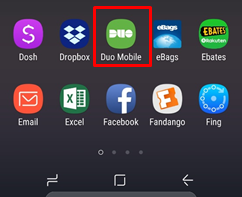
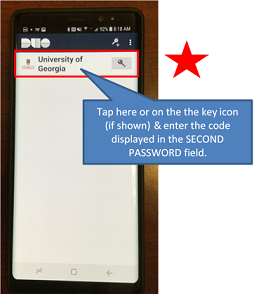
Confirm that you are connecting to the VPN by opening the Duo Mobile app on your device.
Once you are logged in you will likely see an icon down at the lower right of the screen near the clock with a small padlock indicating secure connection.

You will also receive an email message from soc@uga.edu confirming a VPN login from your account. No reply or action is required for this message.
You are now connected to the UGA VPN and your computer should have access to OneSource and other UGA online systems. You may leave the VPN connection signed on throughout the day if you choose. It will automatically sign out after a certain number of hours. If you wish to manually sign out, double-click on the small icon with the padlock and choose “Disconnect.”
Some of the things you may need the VPN for:
- OneSource/Budget Cube/Other Financials
- CAES Share Drives
For additional assistance please contact 706-542-3106. Inform them you need help setting up the UGA VPN client for an off-campus computer.