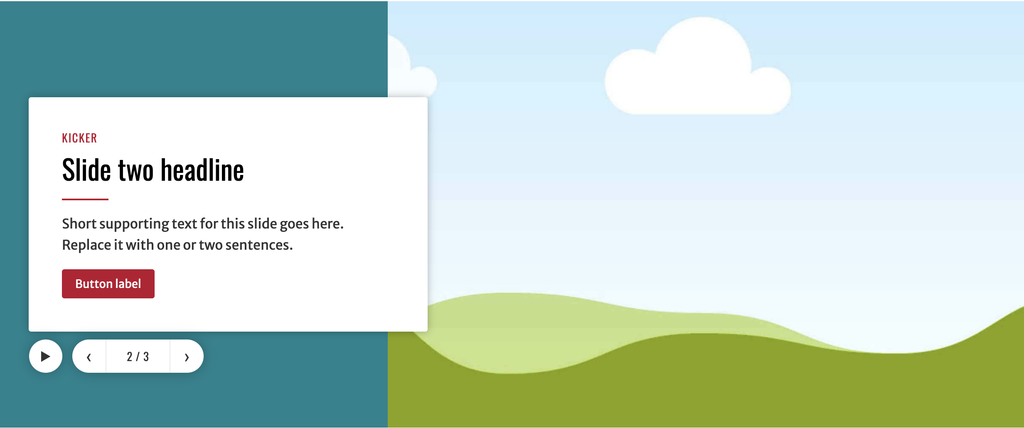
The CAES Hero block builds the large feature area you usually see at the top of a page. It uses a headline, a short piece of text, a photo, and up to two links per slide. Add more than one slide and it becomes a slideshow automatically, with previous and next controls and an optional autoplay.
Use CAES Hero when featuring content you want to highlight, with the intent of getting the user to click the call to action to go to another page. If you only want to highlight photographs, use the CAES Slideshow block instead. If you want a row of cards you can build yourself with just about any type of block, use CAES Card Carousel.
How to add a CAES Hero block
- Edit the page and click the Block Inserter (+) button, click the Patterns tab.
- Search for CAES Hero and select “Hero with three placeholder slides”. If you don’t see it, it probably disabled by default. Contact caesweb@uga.edu or submit a work request for assistance.
- This inserts a CAES Hero that has three slides with filler content.
- In the block toolbar, click Manage slides. This opens the slide editor, where you edit, remove, and add new slides, and rearrange their order.
- Options on each slide:
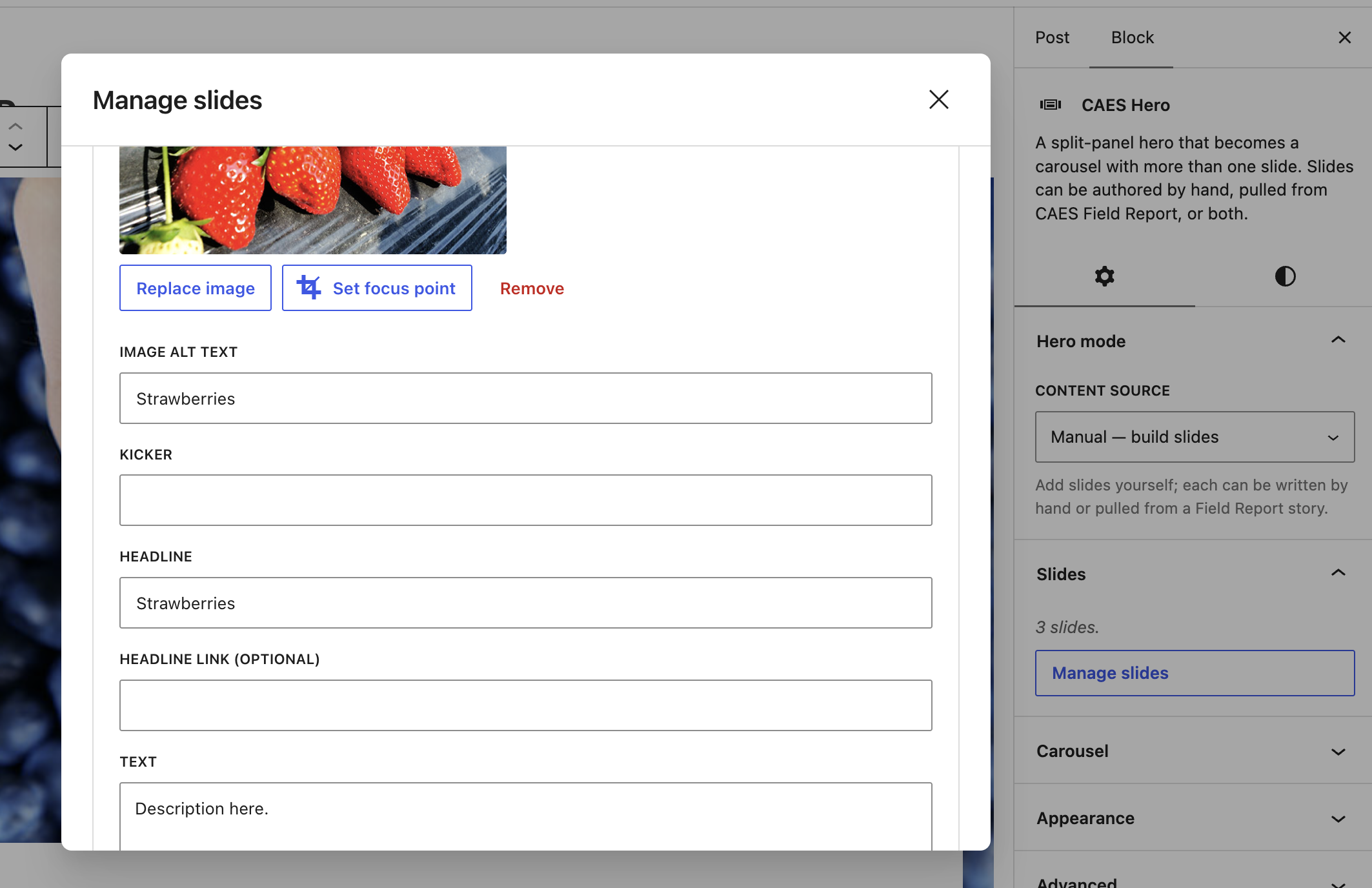
- Image: choose a photo, then use Set focus point to pick the part that must stay visible when the photo is cropped.
- Image alt text: a short description of the photo for screen reader users. See the note on alt text below.
- Kicker: a short label above the headline, such as a section name. Optional.
- Headline, and optionally a Headline link.
- Text: a sentence or two.
- Button label and Button URL for the main link, plus an optional second Link label and Link URL.
- Edit the pre-filled slides (or remove them), add as many slides as you need, reorder them with the arrows, and close the slide editor when you are finished.
Choosing the look
In the sidebar under Styles you can pick:
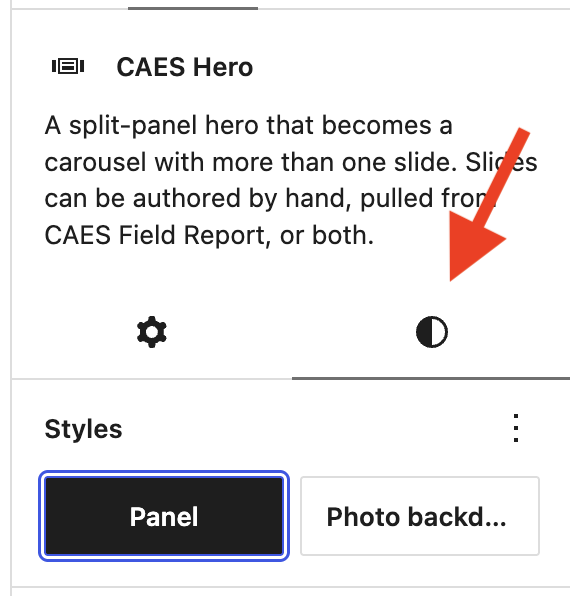
- Panel: the headline and text sit in a colored panel beside the photo. This is the default and the standard CAES look.
- Photo backdrop: the photo fills the entire slide and the text sits in a card on top of it.
Under Appearance you can also set the panel color from your site’s palette, and switch the dotted texture on or off. Colors come from your active theme, so the options you see depend on your site.
Pulling slides from CAES Field Report
A hero can link to Field Report stories instead of slides you manually write.
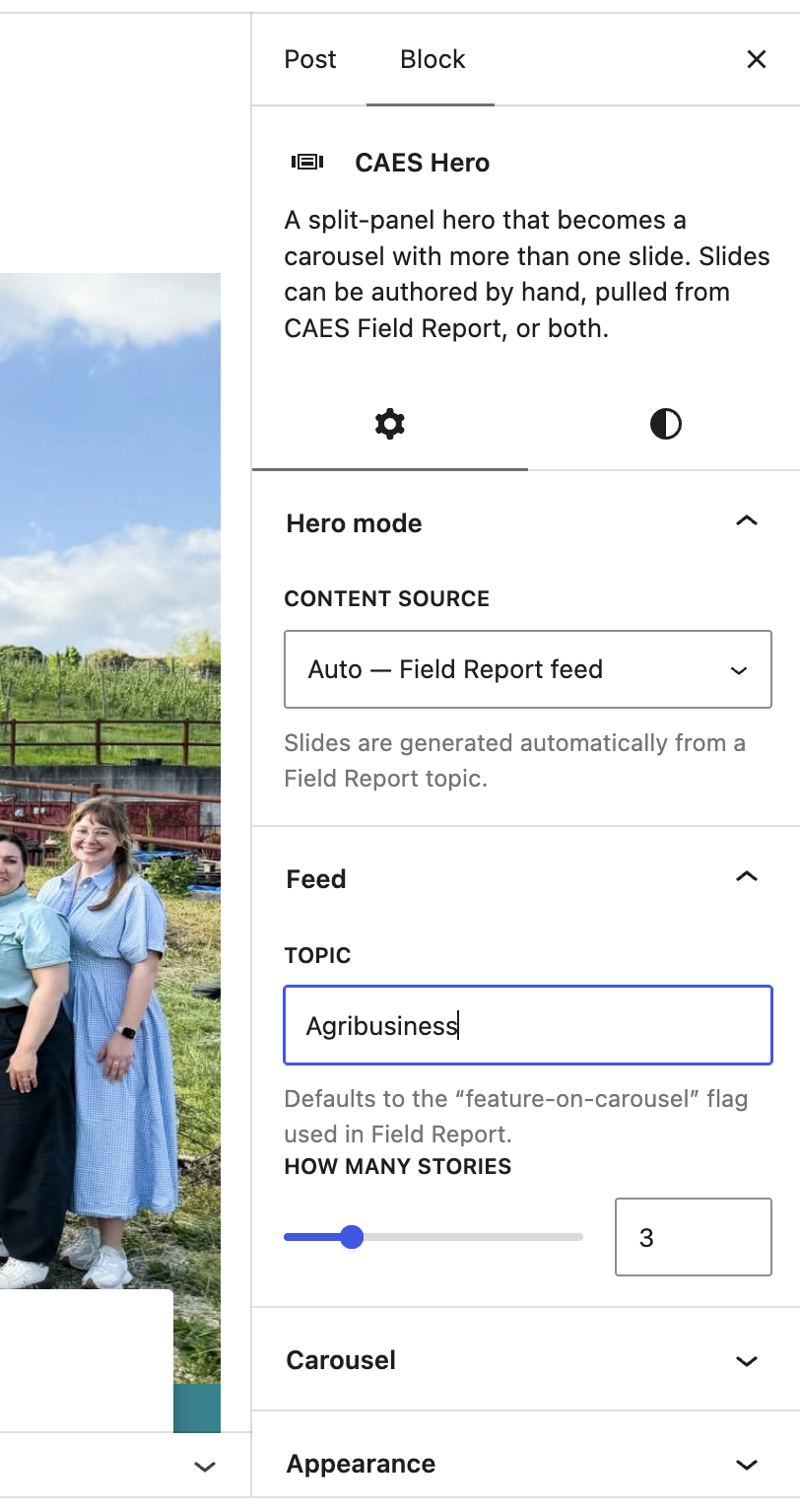
Under Hero mode, set Content source to Field Report feed, then choose:
- Topic: which Field Report topic to pull from. This defaults to the feature-on-carousel flag used in Field Report.
- How many stories: how many slides to show.
Each slide then shows that story’s image, headline and excerpt, and links to the story. The slideshow updates itself as new stories are tagged, so you do not have to come back and edit the page.
You can also mix the two: in manual mode, an individual slide can be set to pull from a single Field Report story rather than text you type.
Slideshow settings
When a hero has more than one slide, a Carousel panel appears:
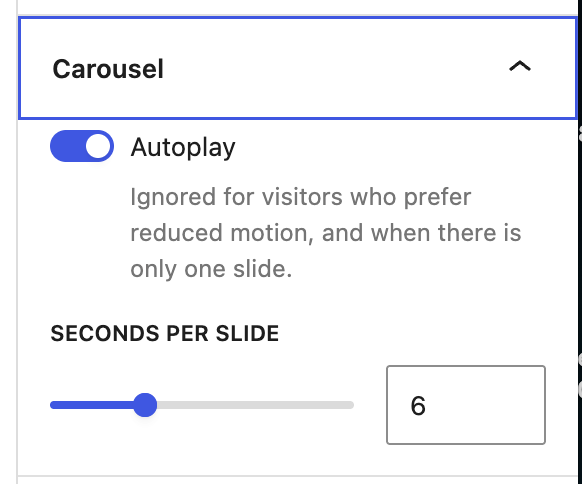
- Autoplay: whether slides advance on their own. This is ignored for visitors who have asked their system to reduce motion, and when there is only one slide.
- Seconds per slide: how long each slide stays on screen.
Visitors always get previous, next and pause controls, and the slideshow pauses when someone hovers over it or scrolls past it.
Accessibility: alt text
Every photo needs alt text unless it is purely decorative. Alt text describes what the photo shows, for someone using a screen reader. For example: “Students harvesting peppers in a greenhouse”, not “hero image” or “photo1.jpg”.
