Sometimes it’s useful to embed a map, form, calendar, or survey directly in your WordPress website. For instance, if you create a form using Google Forms, it’s much better to display the form on your site rather than posting a link that takes users elsewhere.
We’ve made this easier than ever with the new CAES iFrame block — no shortcode editing required.
How to embed content
- Click the Block Inserter + button to add a new block.
- Search for CAES iFrame and select it.
- Insert title and paste your embed code or URL into the input field.
- Click Embed.
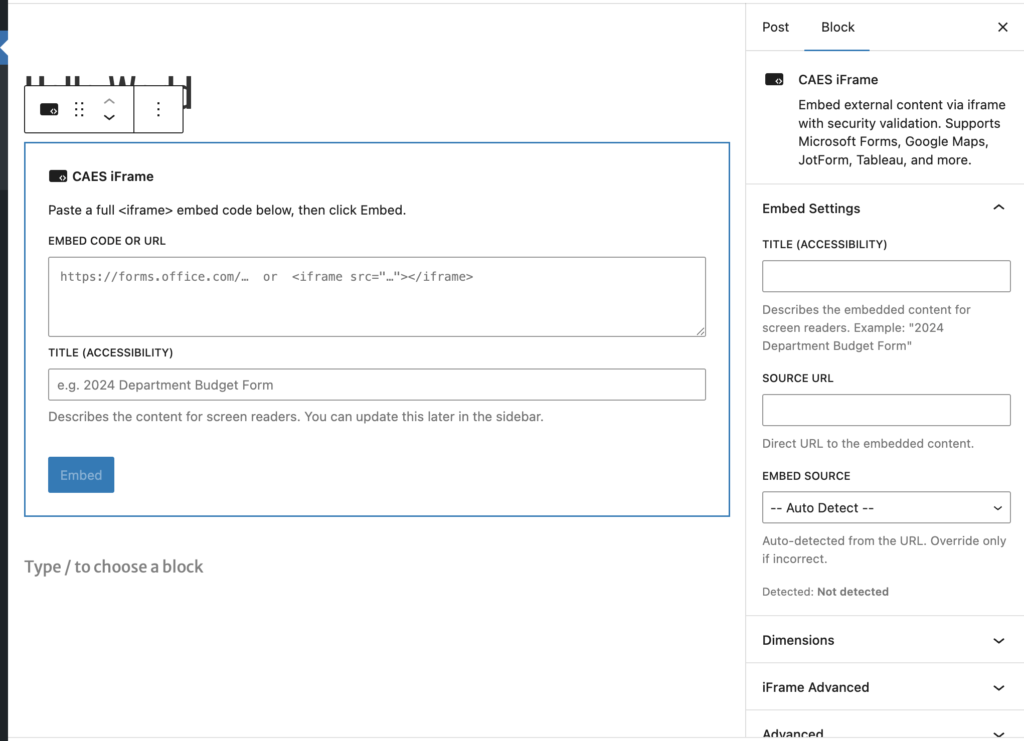
That’s it! No code editing needed. You can adjust width, height, and other display options in the block settings on the right sidebar.
Approved embed sources
For security, the CAES iFrame block only allows content from the following approved sources:
| Source | What you can embed |
|---|---|
| Google Maps | Maps embed |
| Google Calendar | Calendar embed |
| Google Forms | Forms (viewform) |
| Google Slides | Presentation embed |
| Microsoft Forms | forms.office.com |
| Outlook Calendar | outlook.office365.com |
| Tableau Public | public.tableau.com |
| ArcGIS | www.arcgis.com |
| 25Live | 25live.collegenet.com |
| Podbean | Podcast player |
| Page plugin | |
| Kaltura | cdnapisec.kaltura.com |
| Heyzine | Flip books |
Need to embed something not on the list?
Email us at caesweb@uga.edu with the URL you’d like to embed and we’ll review your request. If approved, we’ll add it to the whitelist and let you know.
A quick reminder: Make sure your form, calendar, or map is set to public in your account settings so all visitors can see the embedded content.
Happy embedding — let us know if you have questions!
