Tasks are a feature in DubBot that help to manage the workflow of resolving an issue. They act as an internal communication tool to assign responsibility, collaborate on work, prioritize the most urgent issues, track progress, and get help from DubBot Support or CAES Web Support.
How to Create a Task
Tasks are usually created directly from an issue you are reviewing on a webpage:
- In DubBot, navigate to the page and issue you want to address
- Expand the issue details (using the down arrow icon)
- Select the New Task button (at the bottom of the issue details)
- A dialog box will open where you can:
- Set a Title
- Add a Description with specific instructions or to ask a question
- Select Assignees
- Choose a Priority level
Note: Tasks created from a specific issue on a page will automatically close/resolve if the issue no longer exists during the next site crawl.
Ways to Use a Task

Assign responsibility – Assign yourself or other users to designate who should be working on resolving the issue. If you are using the Task to ask a question or get support, assign the Task to DubBot Support.

Get Help – Assigning a Task to DubBot Support will allow the DubBot Support team to view the issue and offer guidance. Be sure to write your question clearly in the Description section.

Collaborate on work – Each Task will have a comment thread. Multiple users can leave comments on a Task they are assigned to.

Prioritize Work – Tasks can be assigned a priority level – which can be used as a filter on the Task List.
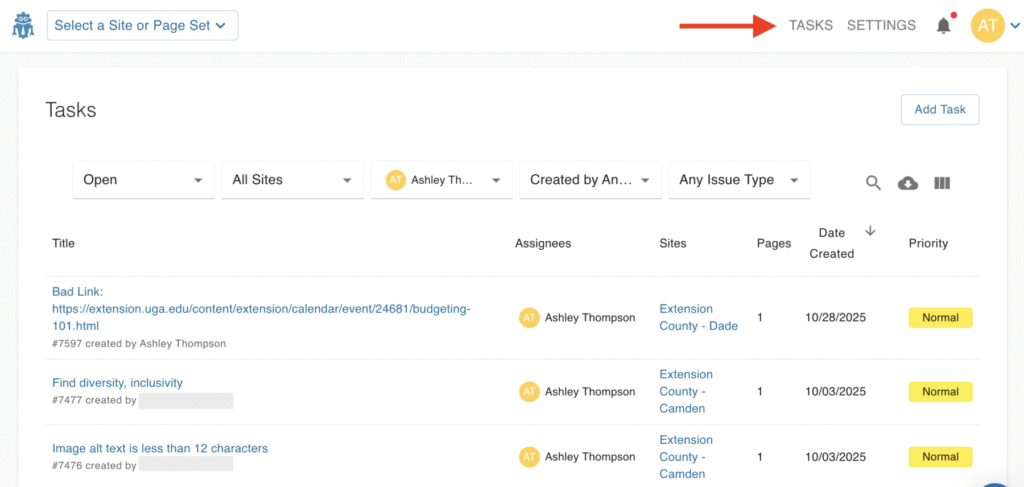
Track Progress – You can view all of your current Tasks in the Task List. It can be sorted with various filters and used as a “to-do” list for issues that need attention on your sites.
The DubBot Help Center has several articles with more information on using Tasks. If you have questions, please reach out to us at caesweb@uga.edu – we are here to help!
