Need closed captioning for a recent video? Need to share a video of a recent event? Looking to add video content to your website? Our Office of Marketing and Communications (OMC) team has you covered. OMC will work with you to get your recorded videos posted to the appropriate YouTube channel and help generate closed captions to meet accessibility standards.
Read below to learn how to request a video be uploaded to our channels.
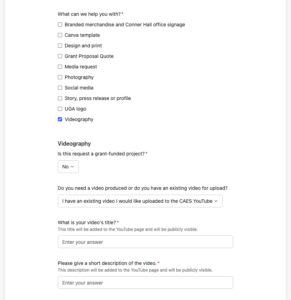
Step 1: Begin an OMC Work Request Form
- Navigate to the OMC New Project Request Form.
- In the request form, specify the type of request by answering the following…
- “What can we help you with?” Select “Videography”
- “Is this request grant funded?” Indicate Yes or No using the drop down.
- When asked if you need a video produced, select “I have an existing video I would like uploaded to the CAES Youtube” from the dropdown.
- Provide the title of your video in the text box.
- Provide a short description of your video. This is the description that will accompany your video when posted to the channel.
Step 2: Complete Closed Captioning Request
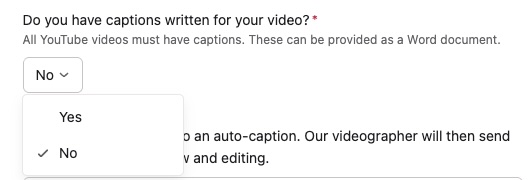
- Indicate if you already have closed captions generated using the drop down option.
- Select “Yes” if you have typed out the closed captions in a separate Word document or your video contains open captioning.
- Select “No” if you would like closed captions auto generated. You will be prompted to indicate that you agree to review the closed captions for accuracy.
- Note: There are two types of captioning. Closed Captioning (CC) is a feature that the viewer can switch on or off to display audio as text when needed. Open Captioning (OC) means that the text has been burned into the video and cannot be switched on or off; text will always display. Review your video to determine if you have CC or OC on your content.
Step 3: Upload a Thumbnail
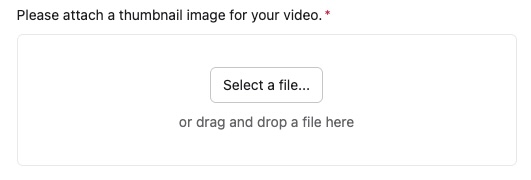
- Upload a thumbnail image (aka poster frame) that you would like to display on YouTube to represent your video.
- You can create a poster frame in Canva using the 16×9 template.
- The file you submit should be a .jpeg under 2 MB.
Step 4: Sharing Your Video with OMC
- OMC will contact you via the email you provided to obtain a copy of your video, and any additional files needed, for upload. It is recommended that, once contacted, you upload your video to OneDrive and share the folder with the OMC representative.
- Please review Microsoft’s guide to Sharing OneDrive files and folders if you need assistance with this step.
