Link text is the clickable text users interact with to navigate the web. Accessible links improve navigation and usability, benefiting users with disabilities and enhancing the overall user experience. When making links, focus on making the link text clear, descriptive, and informative.
Use descriptive link text
Make link text descriptive, conveying the destination even out of context. If you read the link text out of context, does it tell you where you’re going?
Don’t do this:
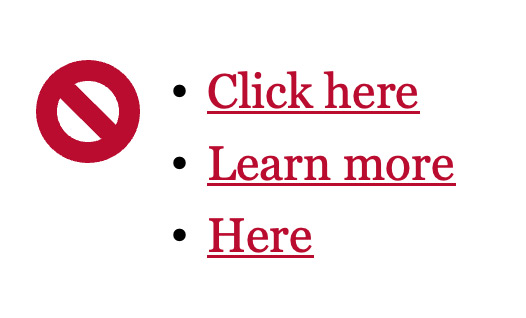
- Avoid link text like “click here” or “here”.
- Imagine the phrase “click here” in a list of links that all say the same thing, like in the image above. Where is “here”, exactly?
Instead, do this:
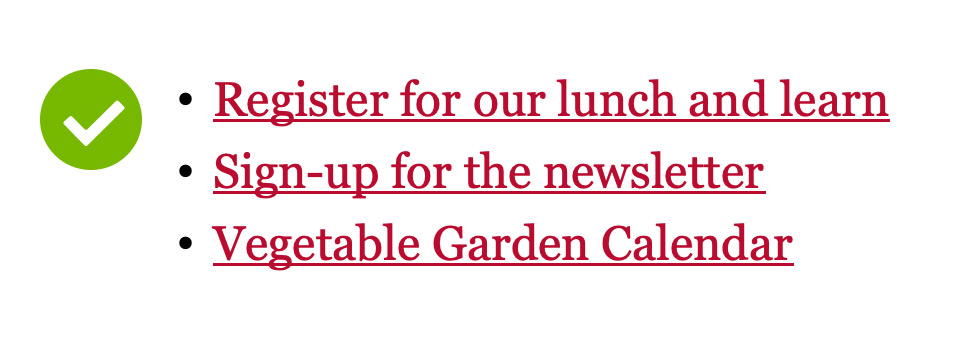
- The link text above clearly describes the destination, even out of context.
- Descriptive link text can be a specific call to action or the title of the page or document that’s linked.
Use unique link text for different destinations
If two or more links on the same page have identical link text, they should lead to the same destination. Screen reader users often navigate by pulling up a list of all links on a page. If multiple links say “Learn more” but each goes somewhere different, it becomes impossible to distinguish between them.
Don’t do this:
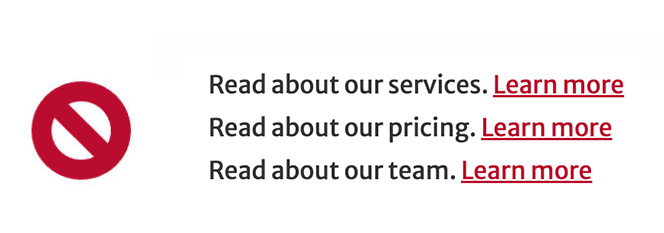
In this example, all three links say “Learn more” but go to different pages. A user viewing a list of links would see three identical options with no way to tell them apart.
Instead, do this:
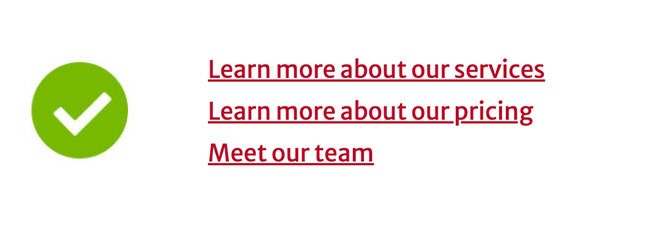
Each link now has unique, descriptive text that distinguishes it from the others. Even when viewed in a list without surrounding context, users can identify exactly where each link will take them.
Keep link text concise
Avoid using long web addresses as your link text. Imagine how annoying it would be to have a long web address read out loud to you! Instead, use the title of the webpage or document you are linking.
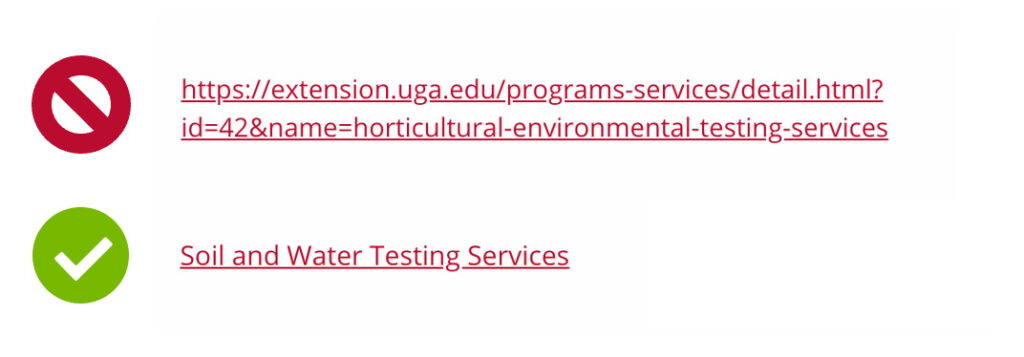
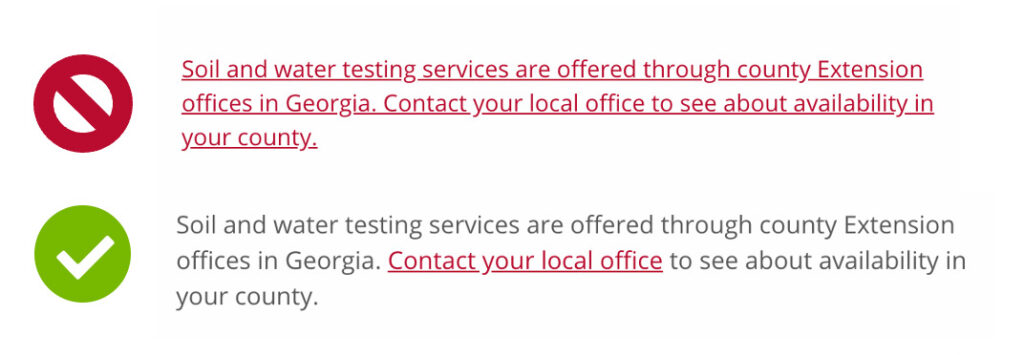
Keep link text descriptive, but short. Avoid overly long or verbose link text, such as a sentence. Instead link short and succinct phrases.
Linking to documents (Word, PDF, etc)
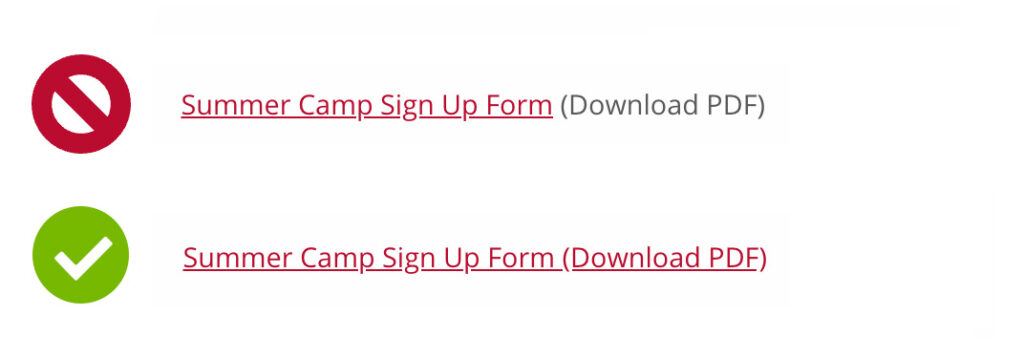
When linking to a document or file other than a web page, be sure to include the file type at the end of the link text. This lets the user understand that they are about to open or download a different type of file from a web page.
Keep link text on one line (PDFs)
When working with PDFs (or any document you will convert to PDF), avoid allowing link text to span more than one line of text. Doing so will result in two separate links that go to the same destination, and with incomplete link text for each.
Don’t do this:
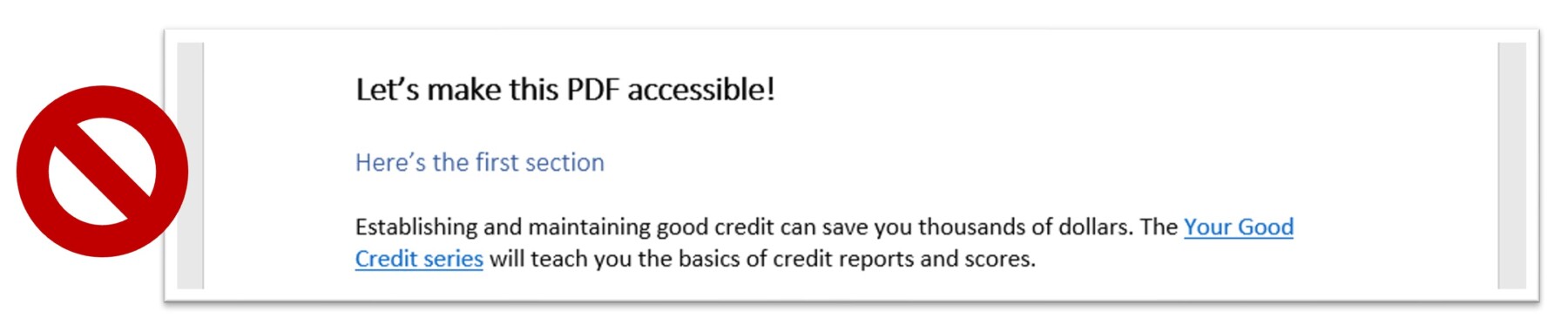
The link text in the example is separated into two lines. Avoid this.
Instead, do this:
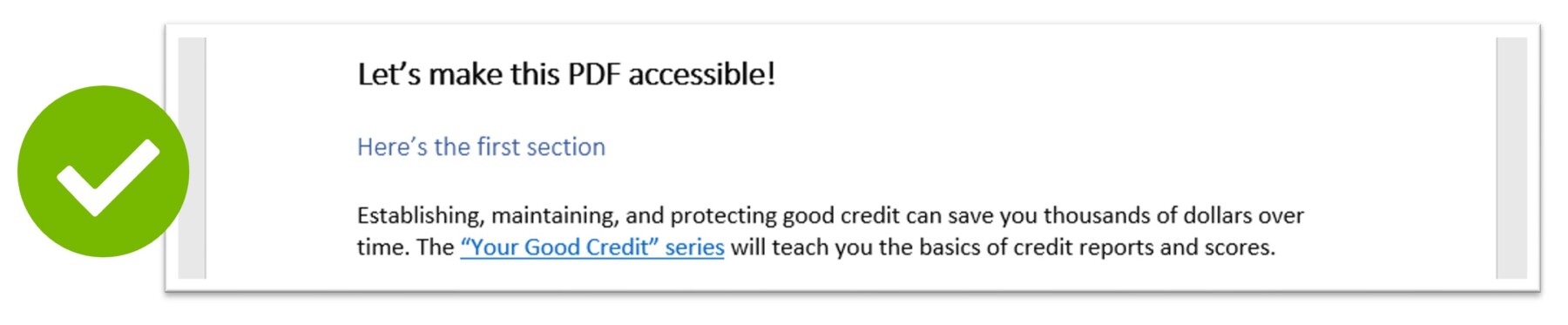
The link text in the example is all on a single line.
Note that this best practice only applies to PDF documents. Webpages will not break links between lines.
Make sure links have underlines
Links should include other visual cues, apart from color, to indicate they are clickable. Do not remove underlines from clickable links!
The below example shows what to avoid:

This also means you should also avoid underlining text that is not a link!
Do not set links to open in a new tab or window
Do not set links to open in a new tab or window:
- It creates a disorienting experience for those utilizing assistive technologies.
- New tabs disrupt the functionality of the back button, a critical browser feature.
- It complicates browsing on mobile by disabling the swipe-to-go-back gesture.
- People should have control over when they want to open new tabs and when they don’t.